
iPhone / iPad Quick Start Guide
Using the Liuguang App, you can complete USB drive or portable SSD binding and secure storage setup in just a few minutes.
⚠️ Note:
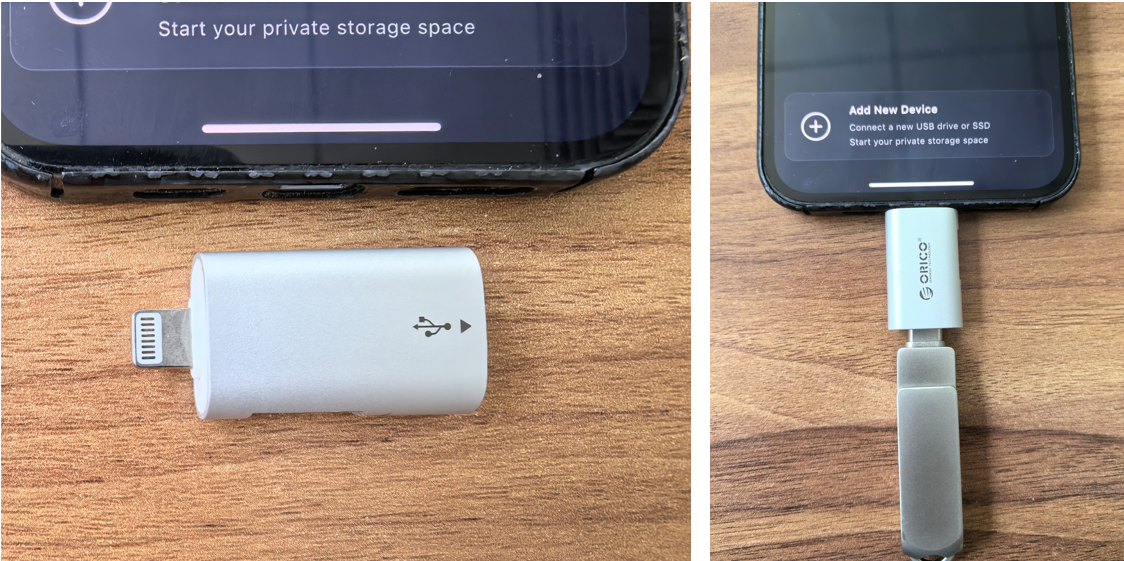
Some older iPhone and iPad models cannot connect directly to USB drives. A Lightning-to-USB adapter (OTG adapter) is required.
1. Preparation
Prepare a Storage Device
Prepare one of the following:
- USB flash drive
- Portable SSD
Recommended:
- Type-C storage devices
- Or USB-A devices with an Apple adapter
iPhone / iPad Connector Types
Newer iPhone / iPad Models (USB-C)
The following devices can usually connect directly to a Type-C USB drive:
- iPhone 15 series and newer
- Most newer iPad models
Connection method:
iPhone/iPad ↔ Type-C USB Drive
Older iPhone / iPad Models (Lightning)
Older devices cannot directly connect to standard USB drives.
You will need:
- Lightning to USB Camera Adapter
- Or Lightning OTG Adapter
Connection method:
iPhone/iPad → Lightning Adapter → USB Drive
⚠️ Important:
Some portable SSDs consume more power and may display messages such as:
- “This accessory requires too much power”
- “Cannot use this accessory”
Recommended solutions:
- Use a Lightning to USB 3 Camera Adapter with external power support
- Or use a low-power USB flash drive
2. Install the Lumin App
Download and install the Lumin Pro App on your iPhone or iPad.
Open the app after installation.
3. Connect the USB Drive or Portable SSD
USB-C Devices
Plug the Type-C USB drive directly into the device.
Lightning Devices
Connect in the following order:
iPhone/iPad
↓
Lightning to USB Adapter
↓
USB Drive or Portable SSD
After connection, iOS may briefly display a device prompt.
4. Log In to Your Lumin Account
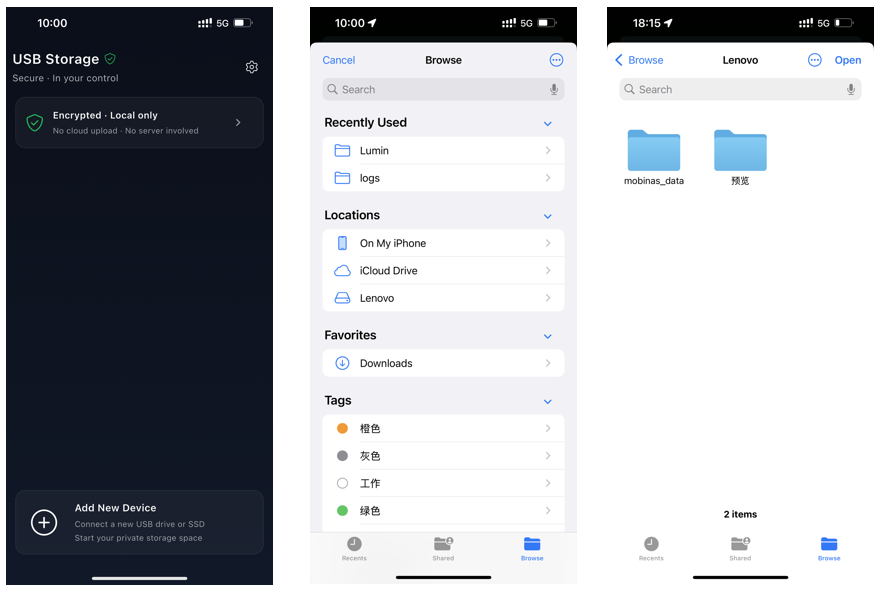
On the Liuguang home screen, tap the “+” button on the “Add New Device” card at the bottom of the screen.
If you are not logged in, a login window will appear automatically.
Steps:
- Enter your phone number
- Tap “Get Verification Code”
- Enter the verification code
- Tap “Confirm” to complete login
💡 Tip:
To access the same USB drive data on another phone or tablet, you must log in using the same phone number.
5. Bind the USB Drive
After logging in, tap the “+” button on the “Add New Device” card again.
In the popup page, tap “Browse” in the upper-left corner.
In the “Locations” list, select the USB drive or portable SSD you want to bind, such as:
- SanDisk
- Kingston
- Lenovo
- Samsung SSD
On the file selection page:
- Make sure to select the root directory of the USB drive
- Do not select a subfolder
Then tap “Open” in the upper-right corner.
6. Binding Status
If the USB Drive Is Bound to Another Account
The app will display:
“You do not have permission to access the encrypted data on this USB drive.”
If It Is a New Drive or Already Bound to Your Account
The app will display:
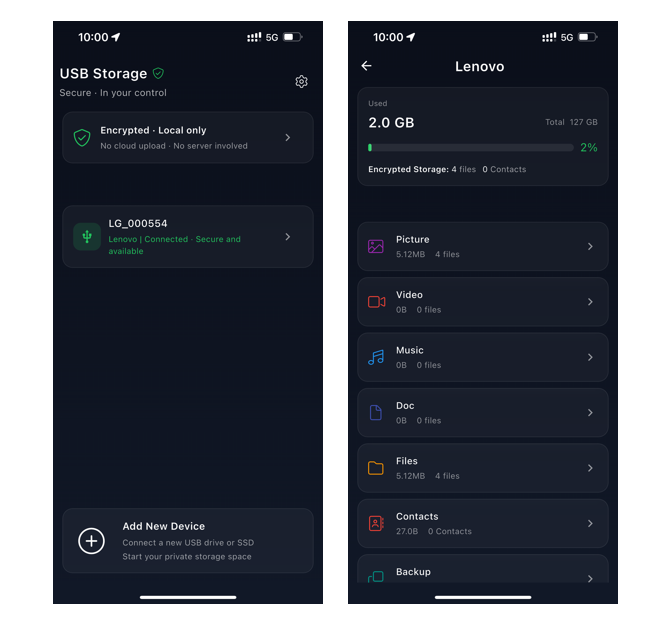
- USB drive ID
- “Connected” status
Tap the device card to access securely stored files on the USB drive.
You can access:
- Encrypted files
- Photos
- Videos
- Documents
for secure storage and access.
7. Common Issues on Older iPhone / iPad Models
1. USB Drive Not Detected
Please check:
- Whether a Lightning adapter is being used
- Whether the adapter supports data transfer (some only support charging)
- Whether the USB drive has sufficient power
2. Portable SSD Not Recognized
Some SSDs require more power.
Recommended:
- Use a powered Lightning to USB 3 adapter
- Or connect external power to the adapter
8. Usage Recommendations
For a more stable experience, it is recommended to:
- Prefer USB-C iPhone / iPad models
- Use branded USB drives or SSDs
- Avoid low-quality OTG adapters
- Use SSDs for large video storage
9. Setup Complete
After successful binding:
Liuguang will automatically create a secure storage space.
You can:
- Securely store photos and videos
- Encrypt and store files
- Access data across multiple devices
- Create your own portable private storage solution