You can complete USB binding and secure storage setup in only a few minutes.
1. Preparation
-
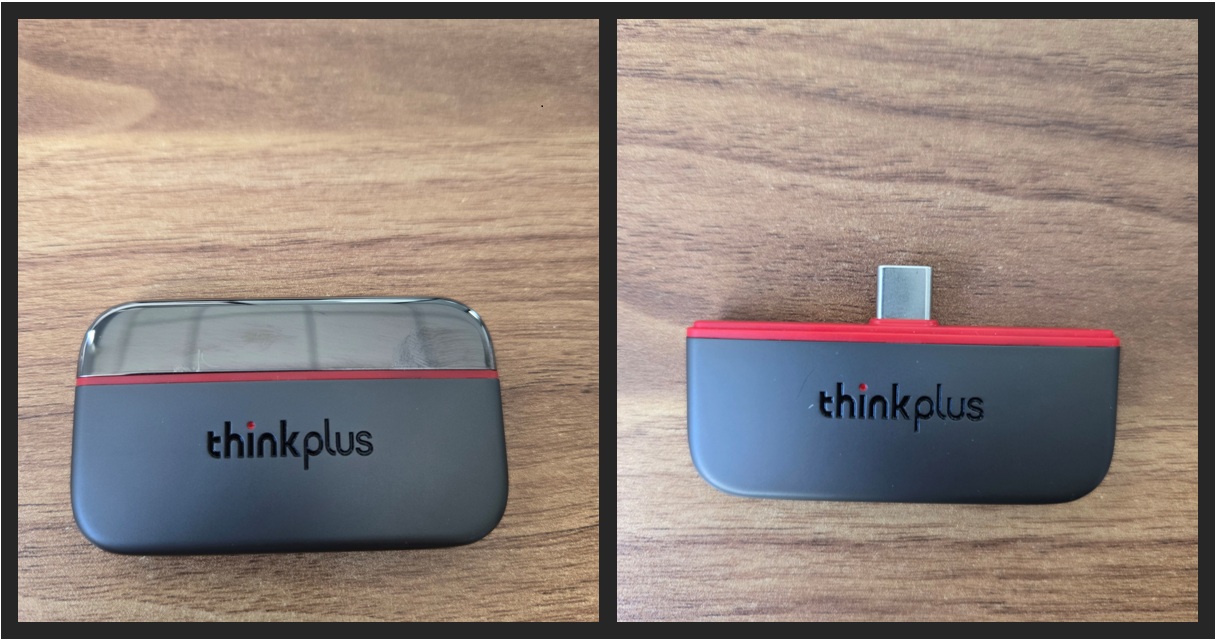
Prepare a USB drive or portable SSD that can connect directly to your smartphone.
-
A Type-C interface is recommended.
Example used in this guide:
Lenovo ThinkPlus Pebble 256GB Portable SSD
-
Download and install the Lumin App on your smartphone.
2. Connect the Device
-
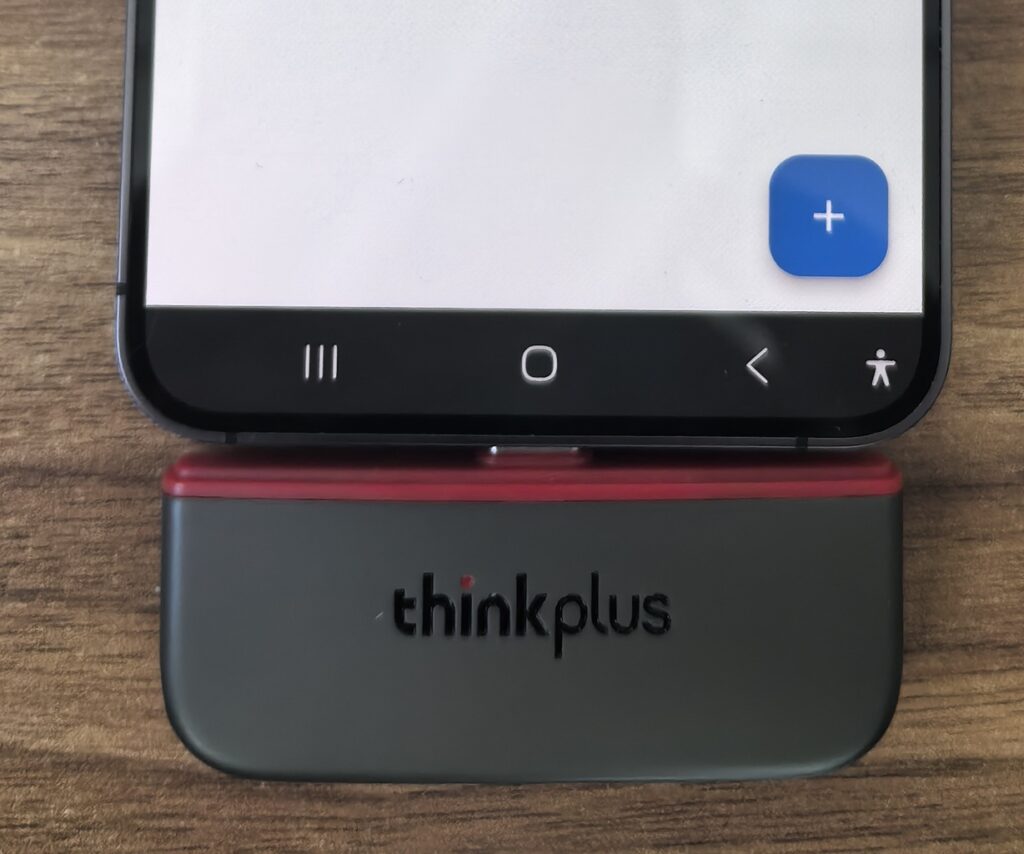
Insert the USB drive into your phone’s Type-C port.
-
Open the Lumin App.
3. Log in to Your Lumin Account
(Lite version does not require this step)
-
On the App home screen, tap the “+” button in the bottom right corner.
-
If you are not logged in, a login window will automatically appear.
-
Enter your email address → tap “Get Verification Code”.
-
Check your email inbox for the verification code.
-
Enter the code → tap “Confirm” to complete login.
💡 Tip:
If you want to access the same USB drive on another phone, you must log in using the same email account.
4. Bind the USB Drive
-
After logging in, tap the “+” button again in the bottom right corner.
-
On the pop-up page, tap the “≡” menu button in the top left corner.
-
Select the inserted USB drive (for example: thinkplus).
In the folder selection screen:
-
Make sure to select the root directory of the USB drive.
-
Do NOT select a subfolder.
-
Tap “Use This Folder” at the bottom.
When the system authorization dialog appears:
-
Tap “Allow” to grant Lumin permission to access the USB drive.
5. Binding Status Explanation
(Lite version does not require this step)
If the USB drive has already been bound to another account:
-
A message will appear:
“You do not have permission to access the encrypted data on this USB drive.”
If it is a new USB drive, or already bound to your current account:
-
The USB drive ID will be displayed.
-
Status will show: “Connected”.
6. Start Using
Tap the connected USB drive to enter the main interface.
Top Information Panel
-
Total storage capacity
-
Used space
-
Storage usage chart by file type (video / image / audio / document)
Six Core Feature Sections
Photos
-
View all encrypted images stored on the USB drive
-
Sorted in reverse chronological order
Music (Not available in Lite version)
-
Browse encrypted audio files
Videos
-
Play encrypted video files
Documents (Not available in Lite version)
-
View encrypted document content
File Management (Not available in Lite version)
-
Browse the full directory of the USB drive
-
Create new folders and organize files
Auto Backup
-
Automatically encrypt and back up photos/videos
-
From your phone’s gallery to the USB drive
7. Daily Use
The USB drive only needs to be bound once.
For future use:
-
Insert the USB drive
-
Open the Lumin App
-
Instantly access encrypted data
No need to bind again.
Usage Tips
-
Lumin uses a “one file, one key” encryption mechanism for stronger security.
-
Even if the USB drive is lost, your data remains protected.
-
No internet connection is required — your data always stays under your control.
Quick Summary
-
Insert the USB drive
-
Log in to Lumin
-
Bind the USB drive
-
Start encrypted backup and secure management
— It’s that simple.